Claude Code runs in the background and goes silent when it finishes. If I switch to another app while it works, I have no idea when it is done or when it is waiting for me. I would lose focus completely. Sometimes I would literally forget what I was working on. So I built claudify.
What it is
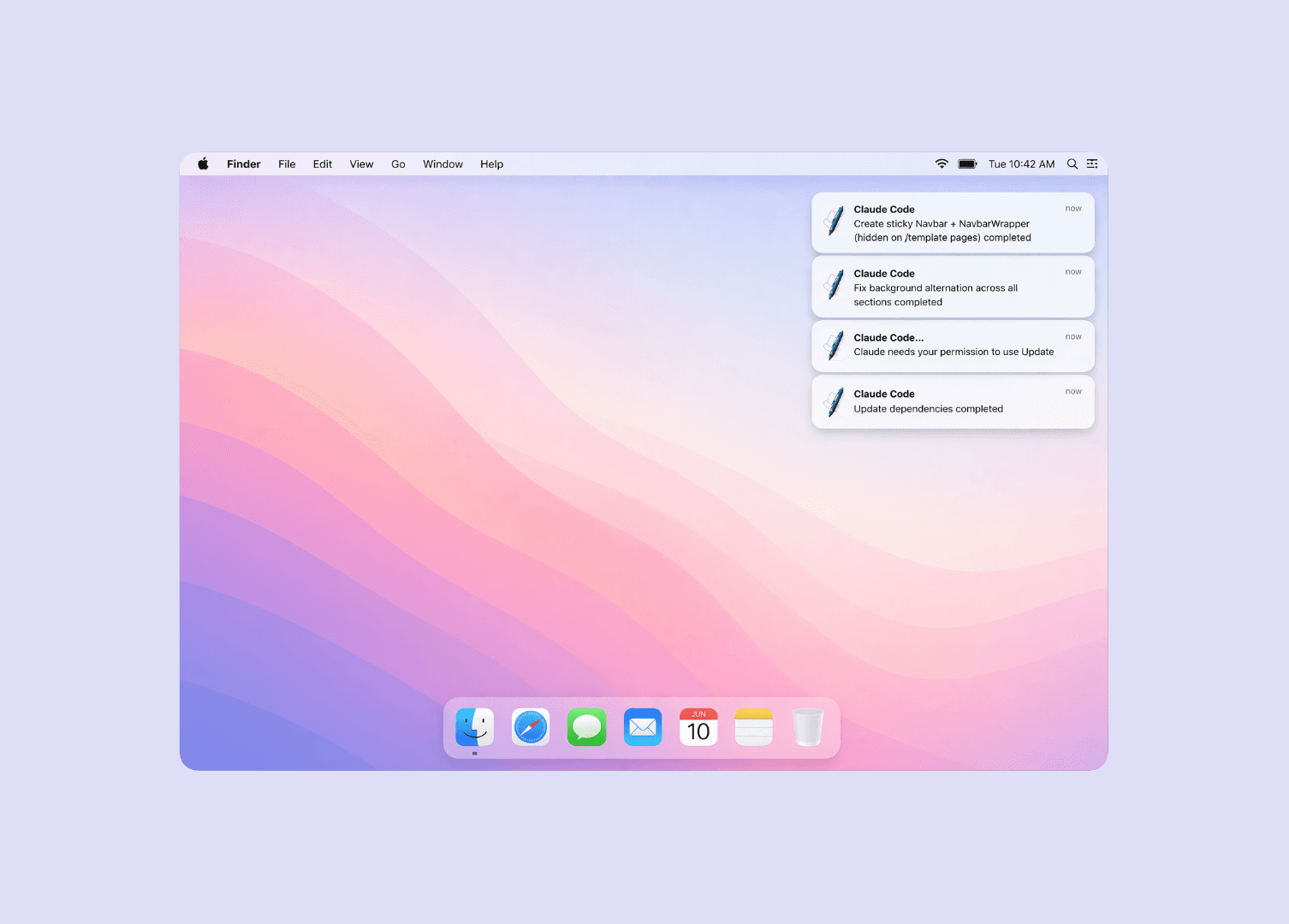
claudify is a small command-line tool that sends you a desktop notification whenever Claude Code finishes a task, needs your approval, or runs into a problem. It works on macOS, Linux, and Windows. It made working with Claude Code noticeably easier.
How it works
Claude Code has a feature called hooks, small scripts configured in a settings JSON file that run automatically when something happens, like when a task finishes or when Claude needs your input. claudify plugs into that system. Whenever one of those events fires, claudify reads what happened, formats it into a readable message, and sends a native notification through whatever the OS supports.
The notification can include details like the project name or Claude's last message. The setup runs in the background and never slows Claude Code down.
Design decisions
Keep it simple. My first idea was to build a VS Code extension. Something with sound options, a custom notification icon, settings you could tweak. But I realised I was overcomplicating it. For my own use, I did not need any of that. I just needed a notification that works. A few friends said the same thing.
One command to set up. Running claudify install sets everything up in one step. It adds what it needs to Claude Code's settings without touching anything else.
No external packages. claudify has no third-party packages at runtime. Everything goes through built-in OS tools. That was partly a simplicity choice and partly a security one: notifications can carry text from Claude's output, so I did not want any external code touching that data.
Useful notification content. Each notification shows the project name and a snippet of Claude's last message. The project name is useful when working on multiple projects at once. I immediately know which terminal to switch to. The message snippet tells you whether Claude finished something or is waiting for your input. Sometimes that is all you need to know and you never have to open the terminal.
Bugs worth knowing about
Silent failure on macOS. On macOS, the system does not tell you if notification permissions are blocked. osascript exits with code 0 whether or not the notification was actually displayed. This is not a fix. It is an acknowledgment that the failure is undetectable, so claudify test tells you how to investigate it yourself every time it runs.
One event, two meanings. The Stop event fires whether Claude finished or is waiting for you. Rather than guessing, claudify reads last_assistant_message directly from the hook payload and shows that instead. Claude's own words are always more accurate than anything I could infer.
Too many notifications. "Claude is waiting" kept showing up when Claude had already finished. The Notification event fires for all kinds of internal activity, not just when input is needed.
To debug it, I added CLAUDIFY_DEBUG=1, a mode that logs the raw payload of every hook event to a file. That is how I found that notification_type: "idle_prompt" is the specific value Claude Code sends when it is actually waiting for you. It is not documented anywhere. I only know it because I captured it from a real session.
The fix was a {{notification_title}} computed variable that maps known notification_type values to readable titles, and falls back to "Claude Code" for anything unrecognised. idle_prompt gets "Claude is waiting..." and everything else gets a neutral title and stays out of the way.
Try it
claudify is open source. The code, install instructions, and config reference are all on GitHub.